Building and Deploying Applications
My app won't start! What do I do?
Check each of the points below:
- Your application runs correctly on your local machine.
- You placed the application code in the archive, not a folder containing it.
- There are no spaces in your file and folder names.
- You closely followed the instructions on the first step (archive upload).
- You have funds in your balance in the Balance section.
- There are no errors in the Logs tab on the application page.
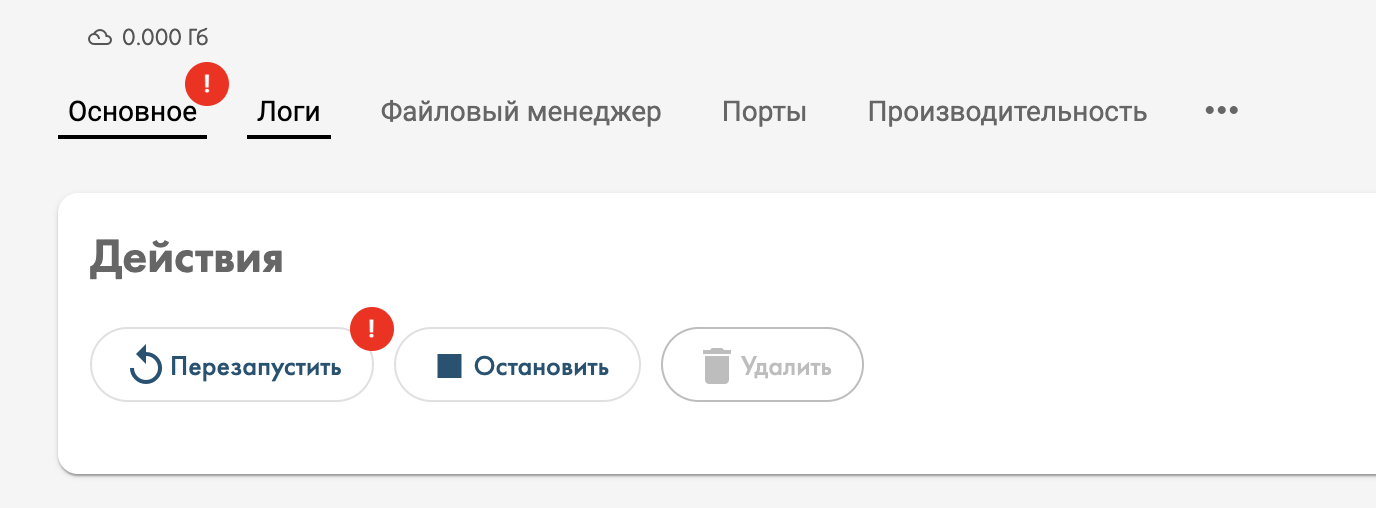
- Try restarting the application by clicking the "Restart" button in the "General" tab on the application page.
If the problem persists — contact us in the technical support chat, we'll be happy to help solve your issue.
How application upload works
There are 3 stages:
- Archive upload
- Content analysis
- Docker container build
After uploading the archive with your application files, our system analyzes the source files and determines:
- application type (Python, Node.js, .NET, GoLang, Dockerfile, etc)
- executable file
Supported application types:
- Python — detected by the presence of
.pyfiles - Node.js — detected by the presence of
package.json - C#/.NET — detected by the presence of
.runtimeconfig.jsonor.csproj - GoLang — определяется по наличию
go.modфайла - GoLang — uploaded as a compiled binary (build locally with
GOOS=linux) - Dockerfile — if the archive contains a
Dockerfile, it will be used
Then the user can adjust the analysis results and depending on the application type change some parameters: framework version, run command, etc.
Finally, the Docker container is built and you're redirected to the application page.
How to get a dedicated address (URL)
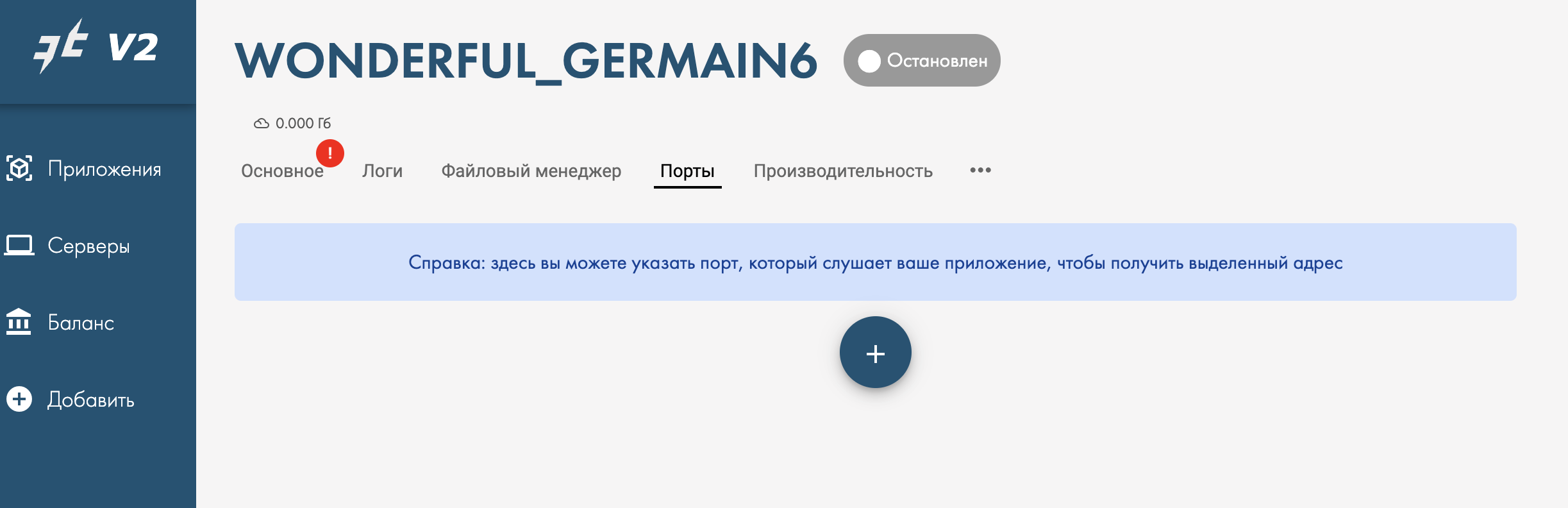
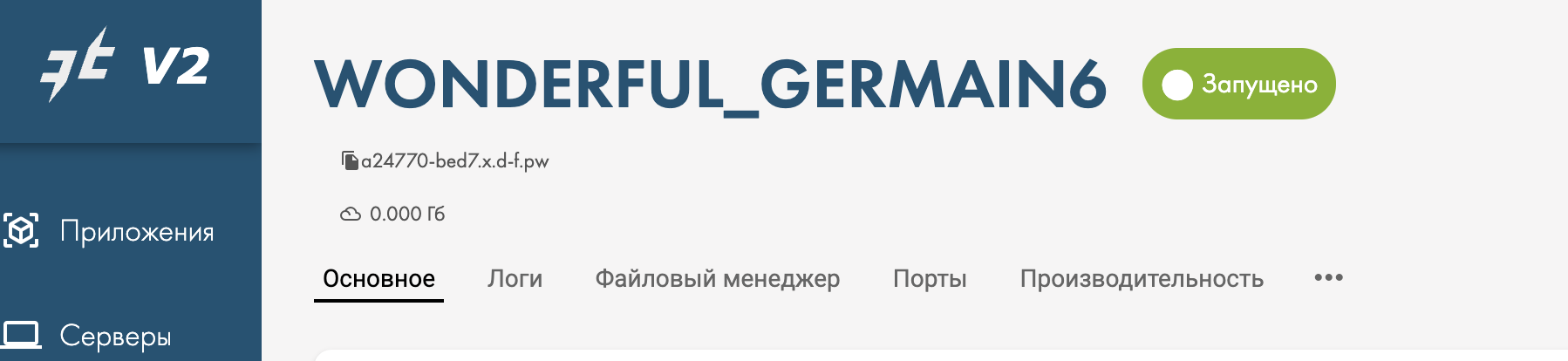
If your application can accept http(s) requests and you need to access it externally, you'll need a dedicated address. To get a dedicated address, simply specify the port your application listens on in the "Web Address" tab and restart the application — the address will appear below your application's name.
Important
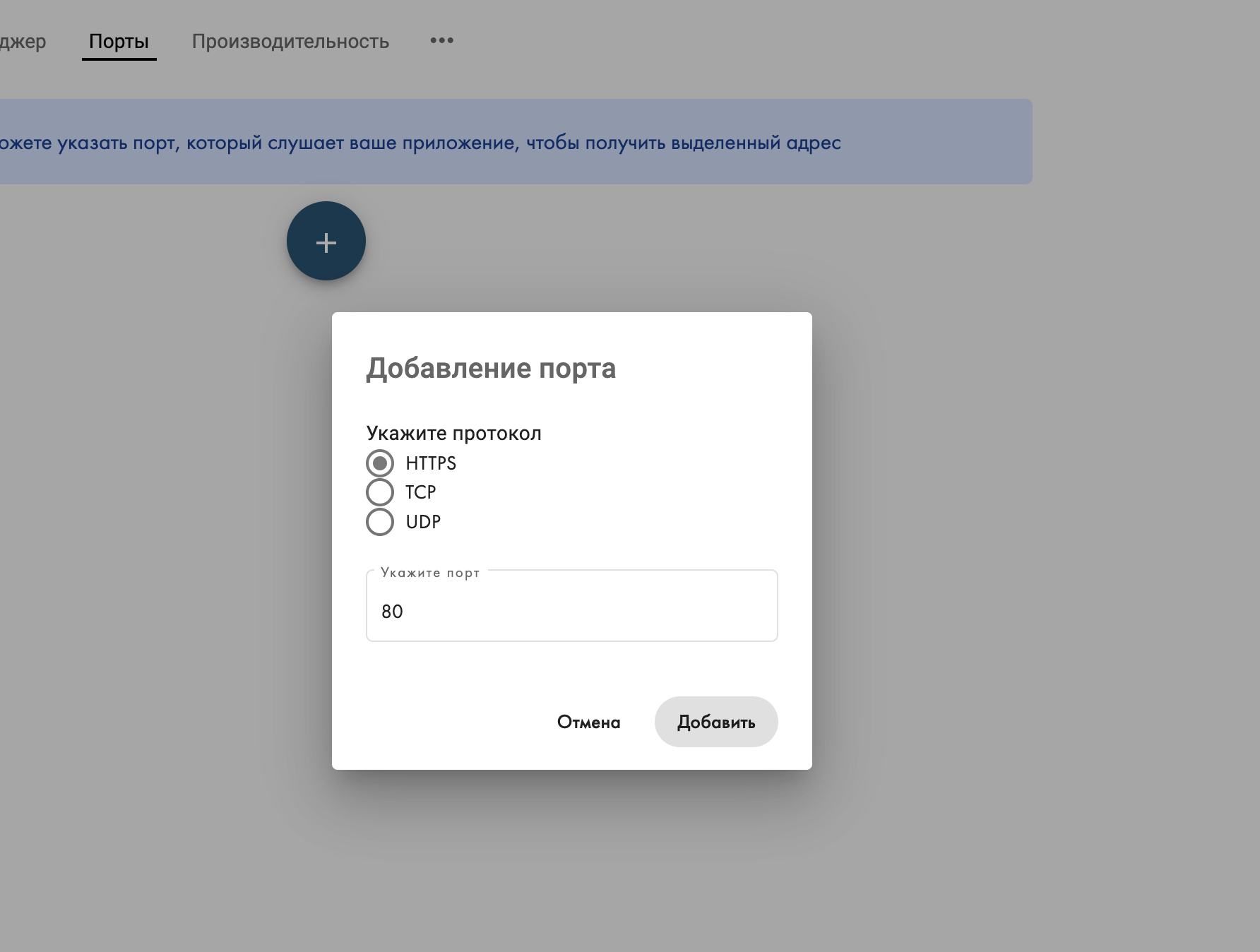
Do not specify the https port (443), you need the http port. The system automatically proxies traffic to your applications via https through the dedicated address.
How do I find out which port my application listens on? Usually you can find this information either from the logs of the running application, or you'll need to check the Web Address tab, or search online.
Example of getting an address in pictures:
1. Go to the Web Address tab and click the Open access button
2. Select the connection type, specify the required port and click Add
3. Restart the application using the Restart button
4. The address appears below your application's name
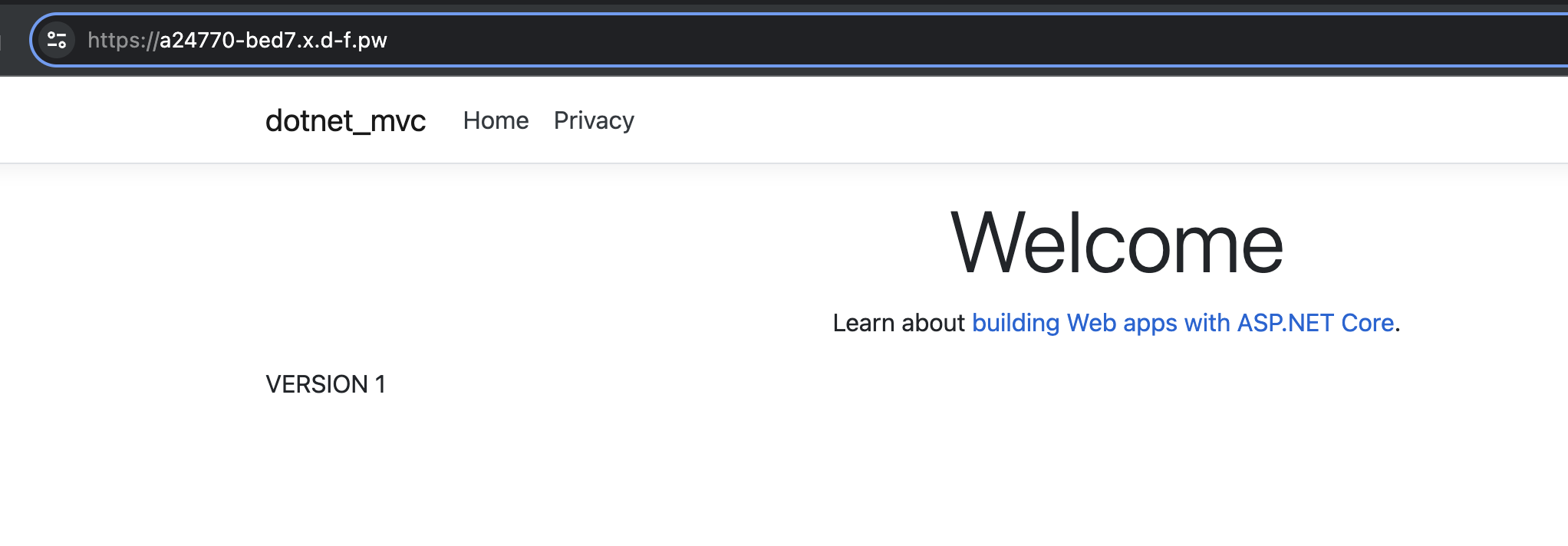
5. Navigate to the address and verify the application works
Why is the "Logs" tab empty?
The logs displayed in the "Logs" tab are periodically cleaned by the system and are meant for you to verify that the application started correctly. If you need to store logs permanently, we recommend implementing log writing to a file or external systems like Seq, etc., in your application code.
Didn't find an answer?
Still have questions? Ask us in the Telegram support chat